6 techniques for pro designs with Claude /design

I spent a day generating visuals with Claude's /design command. Between the first output, which looked like everything AI produces by default, and the last one, which could have come out of a studio, there are exactly six techniques. Here they are.
The test case is a mobile car valeting and detailing business called Auto Blitz. With a name, a service and a pricing structure, I produced an A4 price list, a "how it works" flyer, a review card, an Instagram post, and a full landing page with an embedded 360° video.
What /design actually changes
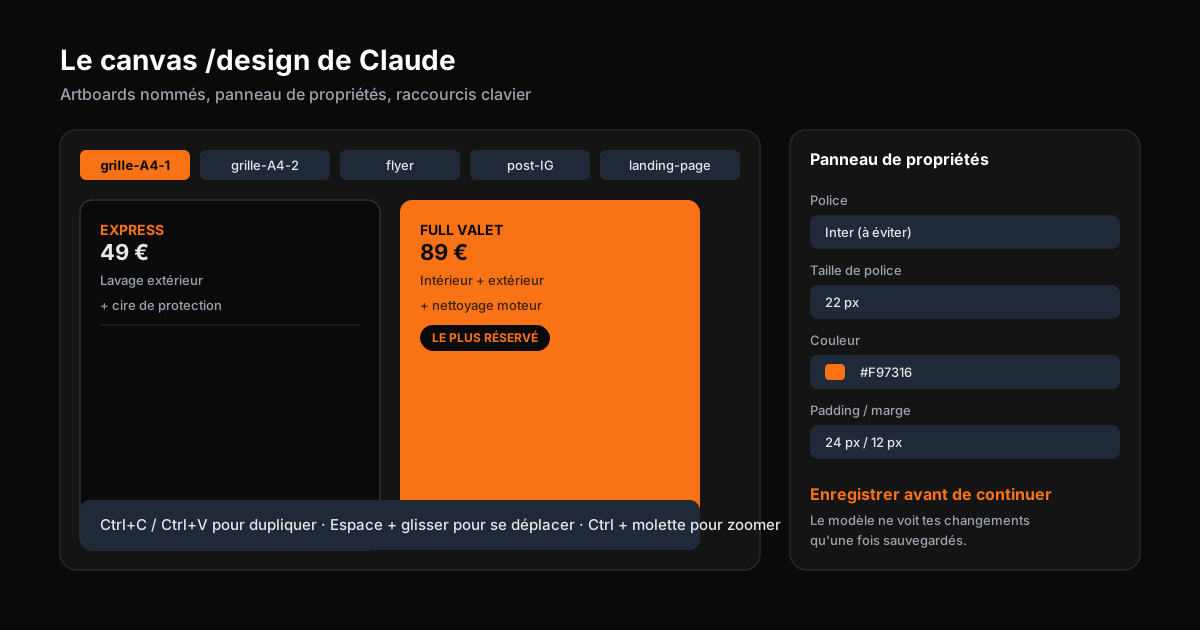
The /design command adds a full canvas inside the Claude app. Available from the desktop app but also from Claude Code in the terminal, it lays artboards on a canvas, much like Figma. The difference: everything behind it is HTML and CSS. No Figma-style drag and drop to move a block, but a properties panel to tweak fonts, colors, paddings, margins and layout.
Each artboard has a name. That's your command language: select a board by name, duplicate it with Ctrl+C/Ctrl+V, pan with the spacebar, zoom with Ctrl and the scroll wheel. For fine edits, open the properties panel and change things directly. For structural changes, describe them to Claude and it handles them.
The trap that catches one user out of two: until you click Save, Claude sees none of your changes. Edit, save, continue. Without that step, your manual tweaks stay invisible to the model.
The default output has five signatures
Ask for something without steering it, and you will always find the same tells:
- Typography. A safe font, most often Inter. That alone makes your visuals look like everyone else's.
- The palette. Picked for you, and usually the same for everyone. For the past twelve months, that meant a purple gradient.
- Imagery. None unless you provide it, or a gradient dropped in as a placeholder.
- Hierarchy. Poor. Everything fights for your attention, and you don't know where to look.
- The whole. Nothing sticks out, nothing responds to anything, everything is safe.
These five problems are exactly what the six techniques below fix.
Technique 1: give it something to look at
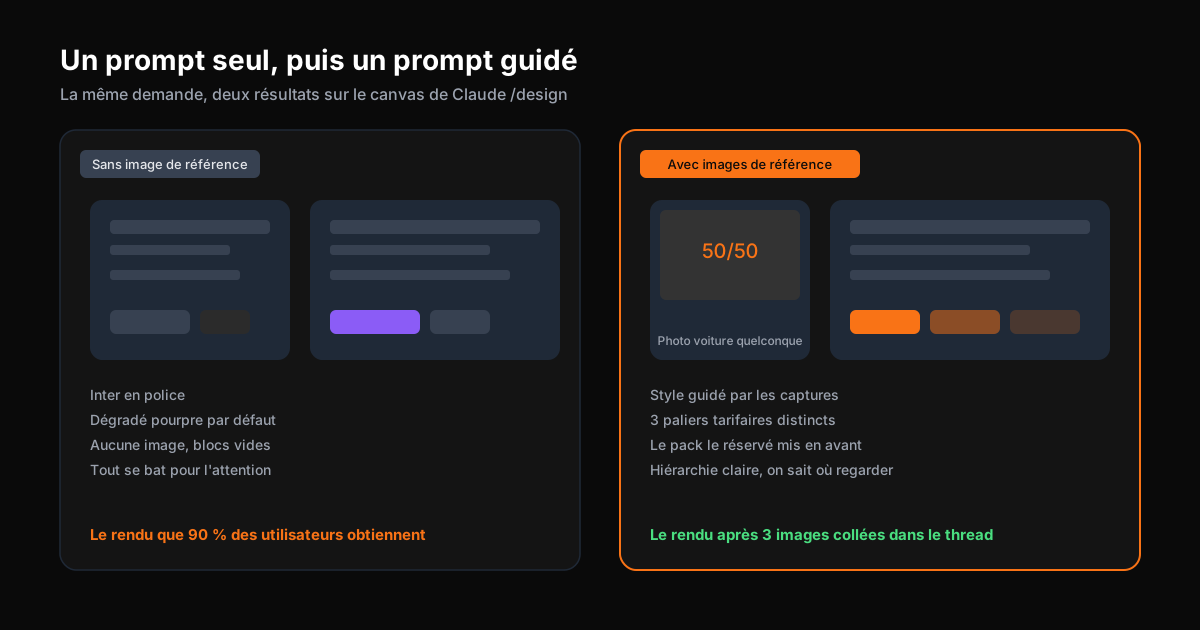
The best effort-to-result ratio by far. A prompt alone, even a perfect one, is not enough: you have to show the target style. Paste screenshots of designs you like into the conversation, and Claude steers the output in that direction. You are not asking it to copy, you are giving it a compass.
Where do you find references? Pinterest, full of print and digital work. Savee, its designer-focused cousin, with genuinely interesting compositions. Dribbble, with its web design, print, typography, illustration and branding categories. You need two or three. It is as simple as taking a screenshot with your OS capture tool and dropping it into the thread.
For one of the Auto Blitz visuals, I used a 50/50 image of a car, a photo of two guys doing a pre-wash, and a plain detailing shot. That is enough to steer both the layout and the style of the generated images.
Technique 2: build the tools the app is missing
This is what separates /design inside Claude Code from the design app alone: access to tools and skills. You ask Claude to build you a small tool that generates images with OpenAI's GPT Image 2 model, paste your API key into a .env, and within minutes you have direct image generation from your thread. Pay-as-you-go: you pay only for what you use.
In my test, I asked for two matching shots of the same Land Rover Defender, one dirty and one detailed and clean. Two images that serve as start frame and end frame for what comes next.
The same mechanics with Replicate for video: I had Claude build a tool that generates videos with the C-Dance 2.5 model, again pay-as-you-go. The Auto Blitz prompt: a car rotating 360° in a driveway, dirty at first, progressively cleaned in stages (pre-wash, contact wash, correction, protection), landing exactly on the final frame. Ten seconds of video, embedded under the landing page hero with a scrub scroll that plays it as you scroll.
The secret is in the prompt: it is not enough to give the two frames, you have to describe what should happen between them.
Technique 3: icons make the professional
An interface or a printed piece is judged largely on its icons. Two ways to get them. First: free libraries, Lucide icons in particular, wired in with a single line to Claude ("improve the iconography using the Lucide library"). Second: custom icons, asked directly from Claude Code or generated by an image model. For consistency, forget screenshots: hand over the raw SVGs, the alignment is far better.
Technique 4: get your designs torn apart
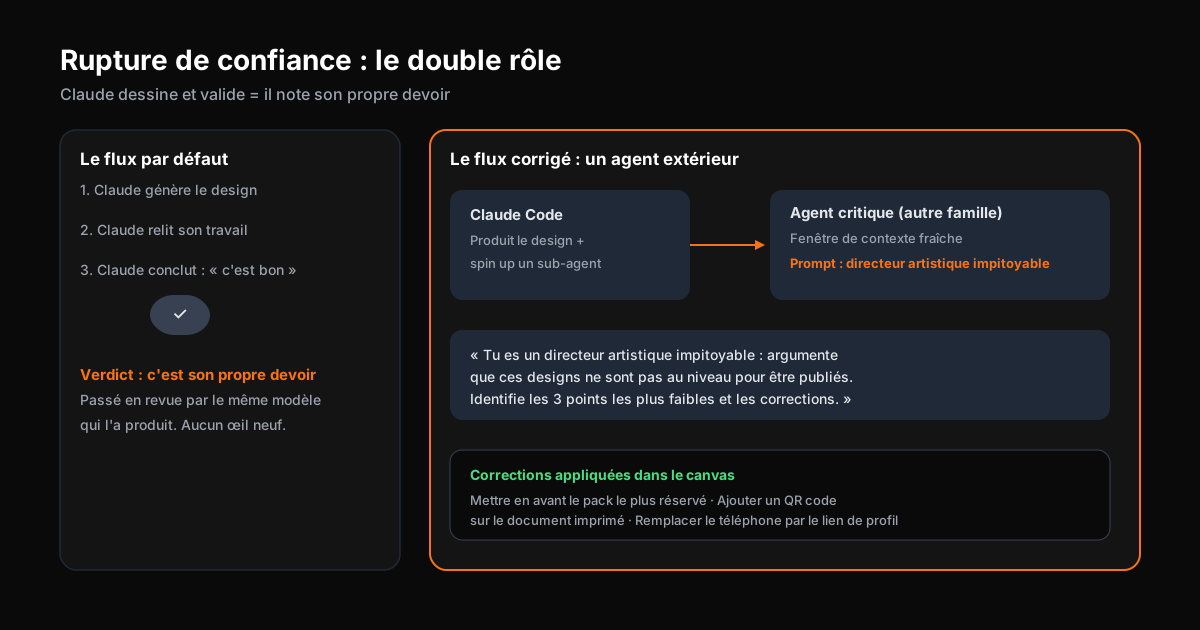
The big blind spot of this whole workflow: Claude draws and Claude approves. It is grading its own homework. The fix is a critique agent that was not in the room. Ideally from a different model family, with a fresh context window, so nothing biases it.
You give it a role: a ruthless creative director. The prompt that worked best: "You are a ruthless creative director and you need to argue that these designs are not good enough to publish. Identify the three weakest areas along with fixes." The word ruthless is the key: you do not want polite feedback, you want it torn apart so the real problems surface.
The first pass on the Auto Blitz design gained: highlighting the most-booked package in the grid, adding a QR code because this is a printed document, and replacing the phone number on the Instagram post with a profile link, since nobody types a number from Instagram. Small details, but visible at first glance.
Technique 5: codify a design system
You spent two hours on a result you like. Next week you rerun and get something completely different. That is normal: every thread starts from scratch. The solution is to turn the approved artboards into a design system before closing the project.
In Claude Code, open a new thread, point it at all the generated artboards, and ask for a design system based on those boards. You get the foundations, the palette, the typography (headlines and body), the logo marks, and the list of reusable components: price cards, process steps, review cards. The point is not to lock the output down, but to send it in the right direction.
The killer feature: the /designSync command syncs that design system with the Claude design app. You select your design system when you launch a new generation, and the whole team produces consistent visuals without going back to the inspiration stage.
Technique 6: save your tokens
Design sessions burn context fast. A few habits prevent your quota from draining:
- Bundle your small requests into one prompt. One list of tweaks beats eight spaced-out messages: large gaps make you miss prompt caching, and the cache is what stops you from re-submitting everything every turn.
- Do the micro-edits yourself. In the canvas properties panel, a bold, a color change or a padding tweak is not worth a round trip with the model. Save.
- Vary the model and effort level. Not everything deserves Fable 5 in ultra coding mode. Keep the high-end for the renders that matter.
- Watch your context window. Stay under 200,000 to 300,000 tokens per session. The bigger the session, the more expensive each iteration.
What the exercise changes
In one day, an offer and a company name were enough to produce a full identity: three price list variations, a flyer, review cards, a social post and a landing page with video. No design skills required, only the discipline of steering the model instead of letting it decide.
The quality of AI output is not about model strength. It is about what you show it, the tools you give it, and the quality of the critique you organize around it. That is exactly the kind of industrialization I set up inside companies: turning a powerful tool into a reliable process, without relying on prompt luck. If you want to ship a production like this, we can frame the project in a 45-minute audit, around your real workflows.
New AI term along the way?
Clear, jargon-free definitions for business leaders.
Take action: your Express AI Audit (45 min)
45 minutes with an AI expert to evaluate your operations, identify productivity gains and map your first high-ROI AI agents.
Designed for SME leaders (10 to 100 staff) · No commitment · 100% IP ownership
Deploy AI Agents in your SME with an External CAIO
Get an outsourced AI Director 1 to 10 days per month to audit, automate your workflows and train your teams.
Stay ahead of AI Innovations
Every week, get a curated selection of our latest articles, case studies, and actionable AI insights directly in your inbox. No spam, 100% value.
Fractional AI Director locations